
Integrations
WooCommerce
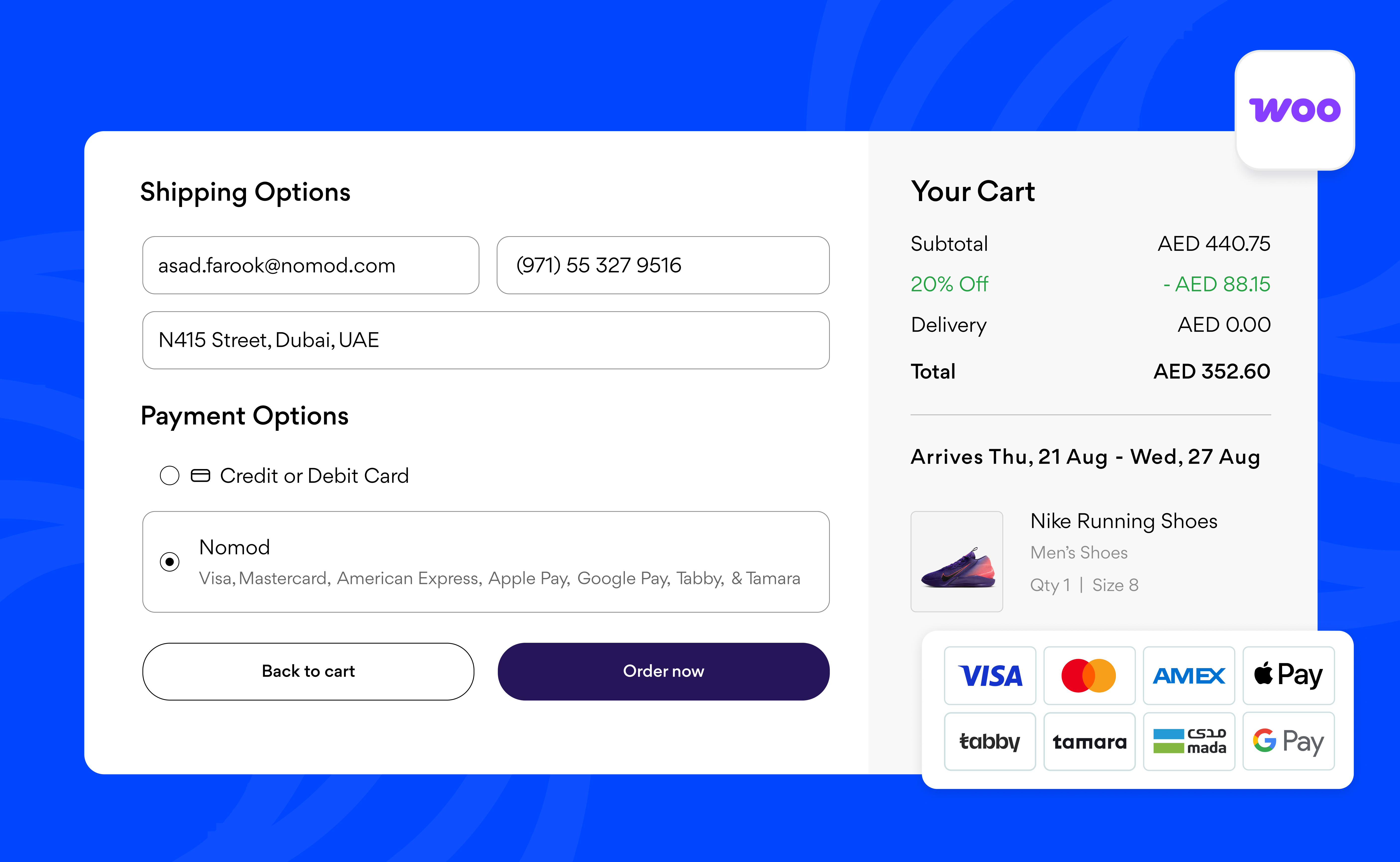
Nomod for WooCommerce offers you a smooth and efficient way to process payments. Get support for major credit and debit cards, Apple Pay, Google Pay, Tabby, and Tamara on your WooCommerce store and give your customers a fast and secure checkout experience, leading to higher conversions and a smoother shopping journey.
Before you install
Before installing Nomod for WooCommerce, make sure your store is running on the following:
- WordPress 6.7 and above
- WooCommerce's latest stable version
- PHP 8.1 and above (or at least 7.4)
- MySQL 5.6 or MariaDB 10.4 and above
- Memory ≥ 256 MB (preferably 512 MB)
- Enabled SSL
How to set up Nomod for WooCommerce
-
Get your API key from Nomod
- Go to Settings > Tools & customisations > Apps & APIs
- Select WooCommerce, tap Create API Key, then copy and save your key
-
Install the Nomod for WooCommerce plugin
- In your WordPress dashboard, go to Plugins › Add New
- Search for Nomod for WooCommerce
- Click Install Now, then Activate
-
Configure Nomod in WooCommerce
- Go to WooCommerce › Settings › Payments
- Select Nomod from the list of payment methods and click Manage
- Enable the payment method and paste your API key into the required field
- Click Save Changes
Nomod will now appear as a payment option for your customers at checkout.
Disconnecting Nomod for WooCommerce
-
In your WordPress dashboard, go to Plugins
-
Find Nomod for WooCommerce in the list
-
Click Deactivate to stop using the plugin (it stays installed)
-
Click Delete to remove the plugin completely
-
Once removed, Nomod will no longer appear as a checkout option in your WooCommerce store
Processing refunds via Nomod for WooCommerce
You can issue full or partial refunds through Nomod directly from WooCommerce or the Nomod app.
From WooCommerce
-
Go to WooCommerce > Orders
-
Select the order to refund
-
In the order summary, tap Refund
-
For each product, you can use the quantity selector to have WooCommerce calculate the refund automatically, or can type a custom amount in the box if you don't want to refund the full quantity or price
-
Add refund notes if you want
-
Select Refund via Nomod
-
Check the order status. If the full order value isn't refunded, the order status will remain unchanged, and the customer will receive a "partial refund" email
From the Nomod app
-
Tap Checkout
-
Find and tap on the order you want to refund
-
Tap ⠇ and select Refund
-
Enter the refund amount, tap Refund Amount, and confirm your action