
Payment Methods
Google Pay
Accept contactless payments from customers using Google Pay on Android devices and Chrome browsers.
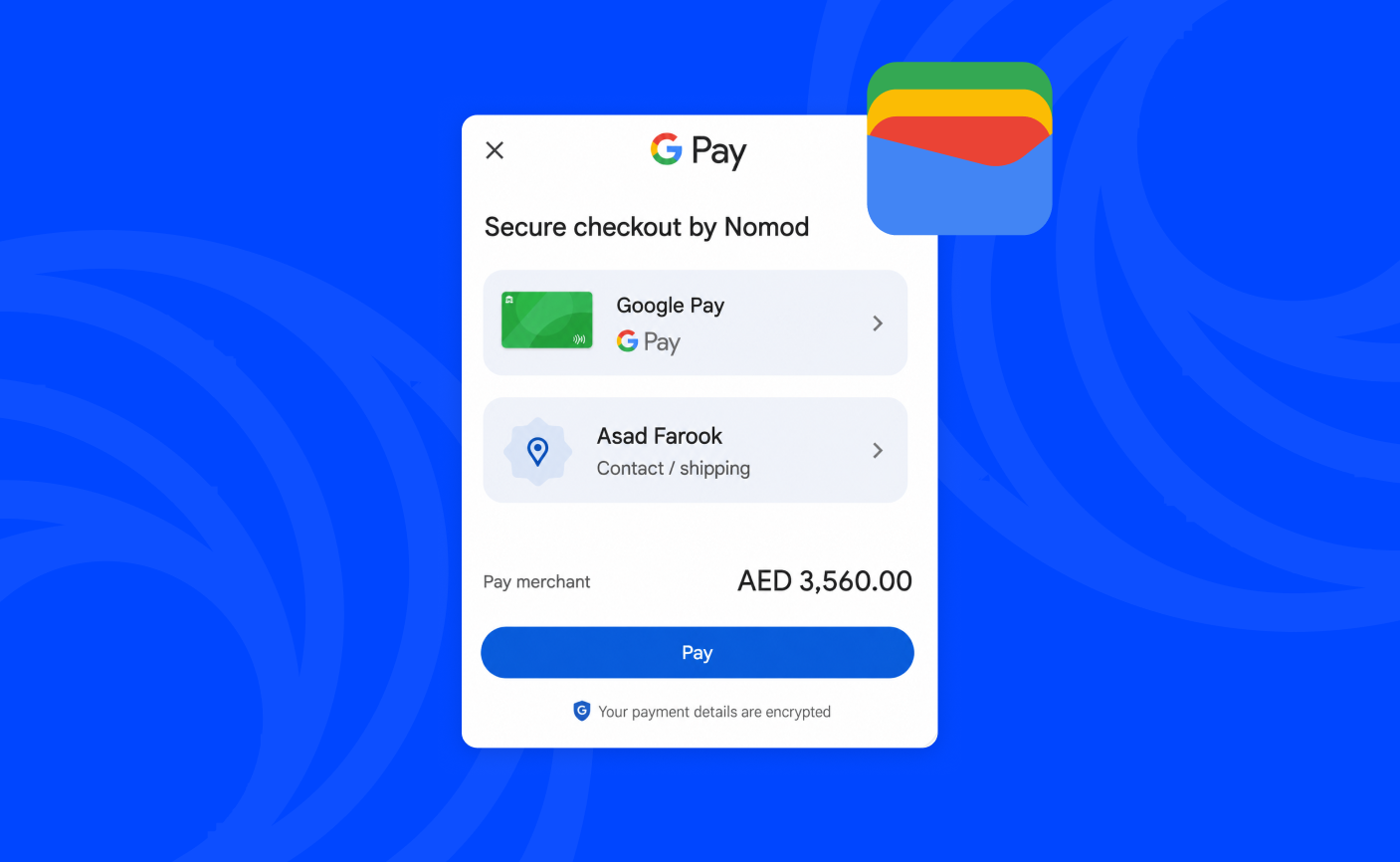
Google Pay is a digital wallet that lets customers pay using a card saved to their Google account. Customers authenticate using their device's screen lock, and the payment processes instantly with no need to enter card details manually.
Device requirements
Google Pay works out of the box on Nomod with no additional setup required on your end. For a customer to pay with Google Pay, they need:
- A Google account with at least one card saved to Google Pay
- An Android device running Android 5.0 or later, or Chrome on desktop with Google Pay set up
- A screen lock enabled on their device (fingerprint, PIN, or pattern)
How Google Pay works at checkout
When your customer selects Google Pay, their device handles authentication and passes a one-time encrypted token to Nomod. No card details are shared with you or stored by Nomod.
- Your customer selects Google Pay at checkout and sees a payment sheet showing the card on file and the total amount
- Your customer authenticates using their device screen lock (fingerprint, PIN, or pattern)
- Google passes a one-time encrypted token to Nomod
- Nomod processes the payment, marks the transaction complete, and the funds settle in your account balance minus fees
Supported cards
Google Pay works with any card that your customer's bank supports for use in Google Wallet. This includes most Visa and Mastercard cards issued by major banks. Customers can check whether their card is supported in the Google Wallet app or at pay.google.com.
Troubleshooting
Google Pay is not appearing at checkout: Make sure your customer is on a supported Android device or Chrome browser with Google Pay set up.
A payment was declined: Google Pay declines are handled by your customer's bank. Ask your customer to check that their card has not expired, the billing address in Google Wallet matches the address on file with their bank, and that the card is enabled for online or contactless payments. If the issue persists, ask them to contact their bank directly or select a different payment method.
A card is showing as ineligible: If a card is greyed out or marked as ineligible, your customer cannot use it for that transaction. Ask them to select a different card or add a new one.
Authentication is not working: Ask your customer to check that a fingerprint, PIN, or pattern is set up on their device. Google Pay will not process a payment without a screen lock configured.
A refund has not been received: Refund processing time depends on your customer's card issuer. If your customer has not received their refund after seven business days, contact our support team.