
Payment Methods
Tap to Pay
Accept contactless card and digital wallet payments directly on your iPhone or Android phone, without needing a separate card reader or terminal.
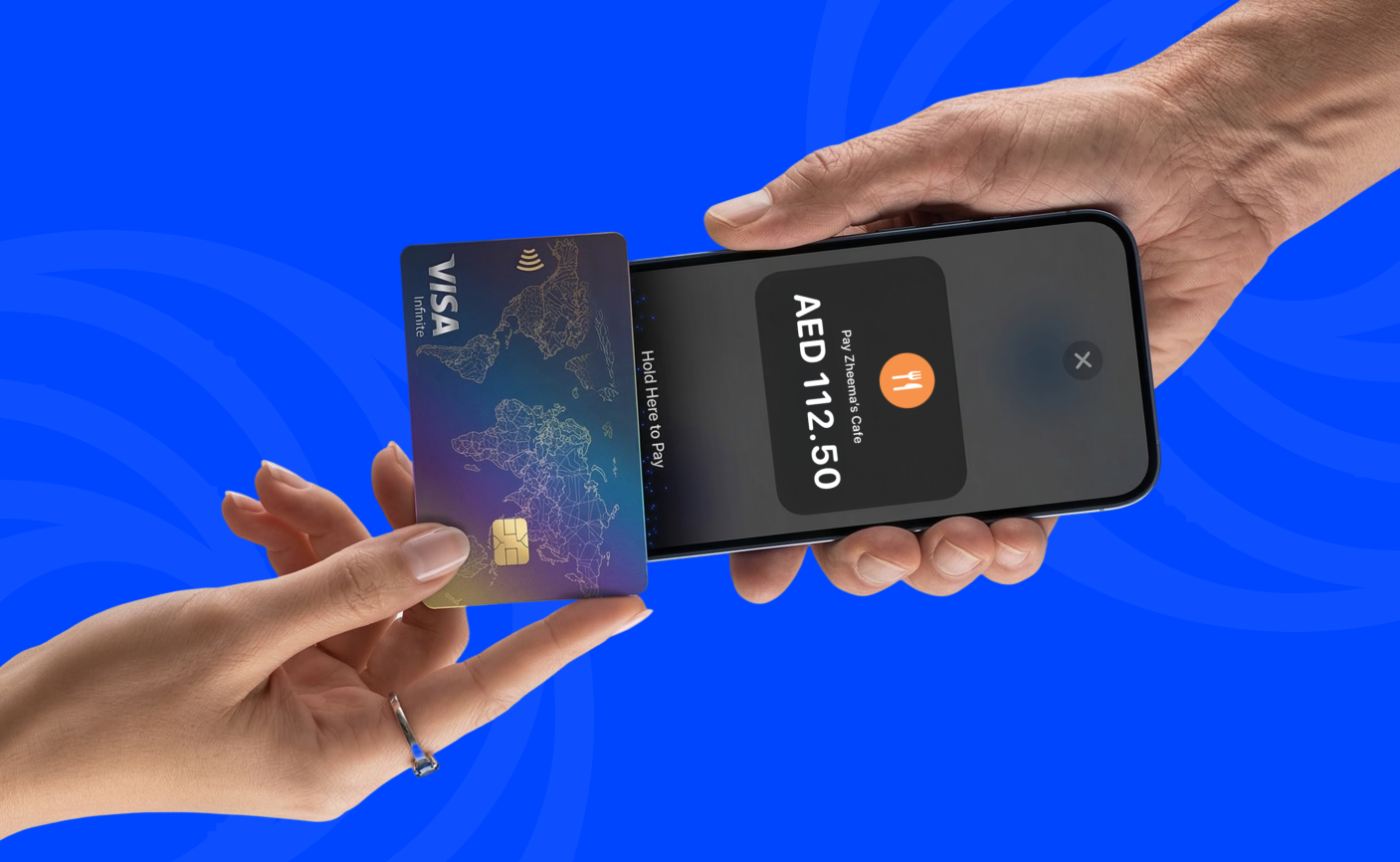
What Tap to Pay accepts
Tap to Pay accepts contactless Visa and Mastercard payments in AED. Your customers can pay by tapping their card, phone, or watch against your device. Apple Pay and Google Pay are also supported.
Device requirements
Your phone must support NFC (Near Field Communication) to use Tap to Pay. Most modern smartphones have this built in.
iPhone
- iPhone XS or later
- iOS 19 or later
- A screen lock passcode
- Device region must be set to United Arab Emirates the first time you use Tap to Pay (Go to Settings > General > Language & Region > Region > United Arab Emirates)
Android
- Android 12 or later, with the latest security updates installed
- Device must have built-in NFC (most modern Android phones do, but some budget devices don't)
- Google-certified Android device that supports hardware key attestation
- A screen lock passcode
Accepting a Tap to Pay payment
Tap to Pay is available for AED charges only.
- Tap In-Person > Tap to Pay
- Select a preset amount or enter a new one
- Hold your phone steady and ask your customer to tap their card, phone, or watch against your device
- Wait for the confirmation screen before moving your phone
How the payment is processed
When your customer taps their card or device, the payment is authorised and processed in real time. You will see a confirmation screen once the payment is successful.
If the payment fails, you will see an error message with the reason. Common reasons include insufficient funds, an expired card, or a card that does not support contactless payments. Ask your customer to try a different payment method.
Troubleshooting
If Tap to Pay is not working:
- Check that NFC is enabled in your phone's settings
- Confirm your phone meets the device requirements
- For iPhone, confirm your device region is set to the United Arab Emirates
- Restart the Nomod app and try again
- Make sure your customer's card or device supports contactless payments
- Hold your phone flat and steady during the tap, and do not move it until the payment is confirmed
- If the issue continues, reinstall the Nomod app and try again.
Still having trouble? contact us on WhatsApp and share your device model and the error message.