
In-Person
Understanding In-Person Payments
Tailor each In-Person payment by adding items, customer details, discounts, notes, and more.
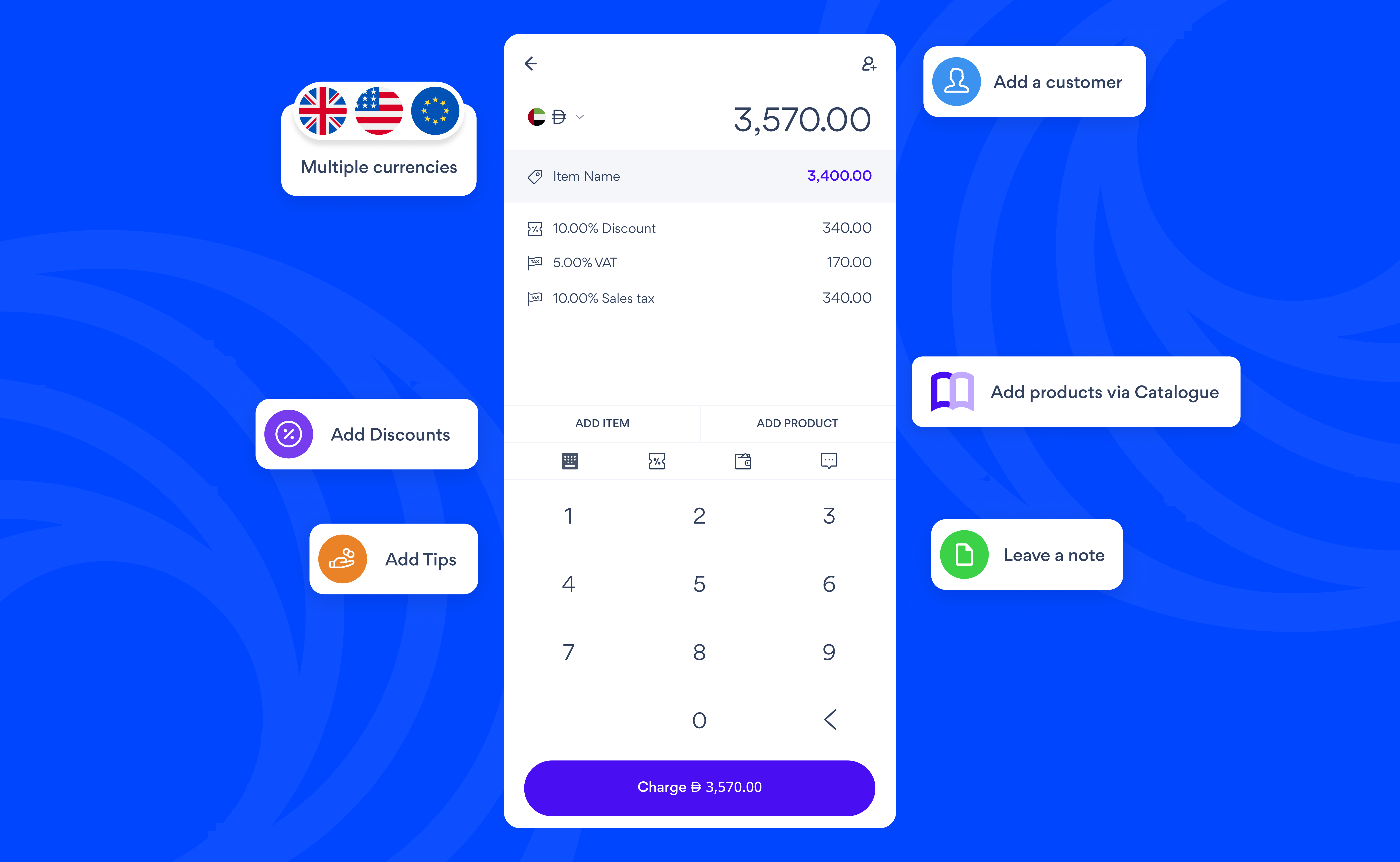
Adding prices
Tap In-Person to set a price for your first item. To charge in a different currency, select one from the currency list.
Updating item details
Your item is named Item name by default.
- Tap an item to edit its name, price, and quantity
- Tap the Add icon to add more items
- Swipe left on an item to delete it
- Tap Catalogue to browse and add from your saved products
Adding a discount
Tap the % icon to add a discount.
- Tap Percentage to discount by a percentage of the total
- Tap Flat amount to deduct a fixed amount from the total
Adding a note
Tap the note icon to describe what you're charging for. For example, "Flight ticket for 15 team members of Ganiyu LLC" or "Gift box for wife".
Linking a customer
Tap the Add Customer icon, then select a customer or add a new one.
Selecting a payment method
Tap the dropdown to select a payment method. Only payment methods you've enabled for in-person will appear here. To manage them, go to Settings > Money > Payment Methods > In-Person.
Charge collects the full amount immediately and is available for all payment methods.
Authorise holds the amount on your customer's card so you can capture the amount later, and is available for Card Form only. For non-AED currencies, only Card Form is available. Learn more about authorising a charge.
- Tabby: Show your customer the QR code on your phone. They scan it with their device and pay through Tabby.
- Tamara: Show your customer the QR code on your phone. They scan it with their device and pay through Tamara.
- Link: Send a payment link to your customer via message or email. They open it on their device and pay.
- QR Code: A one-time QR code appears on your phone. Your customer scans it with their device and completes the payment.
- Card Form: Your customer reads out their card details while you enter them into the form. This is a high-risk payment method and should be used only when other methods aren't available. If your customer is paying with an international card, confirm which of the supported currencies (AED, USD, EUR, GBP or SAR) they'd like to pay in before charging them.
- Cash: Receive cash from your customer, enter the amount, and tap Collect to record the payment.
Sending a receipt
Tap Send Receipt to email your customer a receipt.
Dynamic Currency Conversion (DCC)
Dynamic Currency Conversion is available for international card payments and includes a currency selection step that allows your customers to confirm their preferred payment currency. Nomod offers competitive exchange rates without extra bank or conversion fees. Payments can currently be taken in AED, USD, EUR, GBP and SAR.